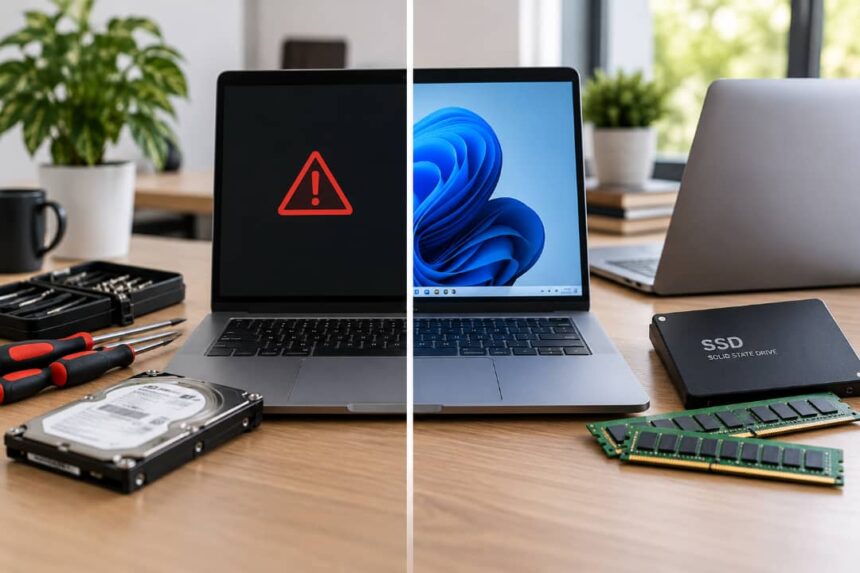
Microsoft says a slow Windows PC can be affected by limited storage, too many startup apps, outdated software, malware, or hardware that no longer meets modern performance needs. That is an important distinction because a computer that feels painfully slow is not automatically a computer that needs replacing.
Sometimes the fix is surprisingly small. A clogged-up storage drive, unnecessary startup programs, failing cooling hardware, or a worn battery can make a perfectly usable computer feel much older than it really is.
The trick is figuring out what is actually wrong before spending money. I have seen people replace machines because they assumed they were obsolete when the real problem was something much simpler.
Key Takeaways
- A slow computer does not automatically need an upgrade or replacement.
- Frequent crashes, overheating, strange noises, and boot failures should be diagnosed before buying new hardware.
- RAM and SSD upgrades can extend the useful life of a healthy computer.
- If the machine cannot run a supported operating system or several major components are failing, replacement may be the more sensible option.
- Back up important files before attempting major repairs, resets, or hardware changes.
A Slow Computer Does Not Always Need Replacing
Start with the basics. Microsoft recommends checking Windows updates, available storage, startup applications, malware, and resource usage before jumping to hardware conclusions. Its current performance guidance specifically notes that older hardware may not improve significantly after software troubleshooting, but that does not mean every aging PC is beyond saving.
Open Microsoft’s Windows performance guide and you will find several of the same checks I would make first: look at CPU, memory and disk activity, remove unnecessary applications, reduce startup programs, and free up storage.
That first investigation can save you from buying the wrong component. For example, if memory usage is consistently high while you are running several applications, adding RAM can be much more useful than replacing the entire machine.
Signs Your Computer Probably Needs a Repair
Some symptoms point less toward an upgrade and more toward a fault that needs investigation.
- Frequent crashes or freezing: Repeated lockups can be linked to drivers, damaged system files, overheating, memory problems, storage issues or failing hardware.
- Unexpected shutdowns: A machine that switches off under load deserves a closer look at power, temperature and hardware stability.
- Overheating: Loud fans, excessive heat and sudden performance drops can indicate blocked airflow, cooling problems or other hardware issues.
- Strange noises: Grinding, clicking or unusual mechanical sounds should not be ignored, particularly when a traditional hard drive is involved.
- Boot failures: A computer that repeatedly fails to start may have a software problem, but hardware should also be considered.
- Physical damage: Broken screens, charging ports, hinges, keyboards and other components are often individual repair problems rather than reasons to replace the whole machine.
Windows also provides Safe Mode and other startup troubleshooting options that can help separate certain software and driver problems from more persistent faults.
For hardware symptoms, professional diagnosis can be useful because swapping parts randomly gets expensive very quickly. A repair technician can test the system and establish whether the problem is a single failed component or a broader reliability issue.
When an Upgrade Is the Better Answer
A hardware upgrade makes the most sense when the computer is otherwise healthy but one component is holding it back.
RAM is an obvious example. If you regularly work with dozens of browser tabs, large documents, photo-editing applications, virtual machines or development tools, insufficient memory can become the bottleneck.
Storage is another common upgrade. Microsoft notes that low disk space can reduce performance and cause problems installing updates. Before replacing the drive, however, check whether it is simply full or showing signs of failure. Freeing space and replacing a healthy but undersized drive are very different jobs.
An SSD upgrade can also transform an older desktop or laptop that still has adequate CPU and memory performance. A graphics upgrade can make sense for a desktop used for gaming, 3D work or video production, provided the rest of the system can support it.
| Symptom | First thing to investigate | Possible solution |
|---|---|---|
| Apps slow down when multitasking | Memory usage | RAM upgrade |
| Slow boot and file loading | Storage type and health | SSD upgrade or storage replacement |
| Gaming performance is poor | GPU and CPU requirements | Graphics or system upgrade |
| PC runs hot and slows down | Cooling and airflow | Cleaning, cooling repair or component replacement |
The table is deliberately simple: the goal is not to prescribe an upgrade from a symptom alone, but to show where the investigation should begin.
When a Battery Problem Is Not a Computer Problem
Laptops make this distinction particularly clear. A machine that works well while plugged in but barely lasts away from the charger may simply have an aging battery.
Apple’s current guidance says a Mac showing “Service Recommended” has reduced battery capacity or a battery that is not functioning normally. Apple says the Mac can continue to be used, but battery service may be appropriate when the reduced capacity affects the experience.
Check the battery health before deciding the laptop itself is finished. Replacing a worn battery can be far cheaper than replacing an otherwise capable computer.
When Replacement Starts Making More Sense
There comes a point where upgrades become a patchwork solution.
Microsoft lists several signs that can indicate it is time for a new PC, including an inability to receive current updates, persistent errors, long startup times, poor everyday performance, low storage and consistently high CPU, memory or disk usage.
There is also an important security consideration in 2026. Microsoft support for Windows 10 ended on October 14, 2025. A computer may still boot and run Windows 10, but Microsoft no longer provides free Windows Update software updates, technical assistance or security fixes for the operating system.
That does not mean every Windows 10 computer must immediately be thrown away. It does mean compatibility with a supported operating system should be part of the replacement decision.
A useful rule is this: if several major problems are appearing at once—such as failing storage, poor battery life, overheating, insufficient performance and operating-system compatibility issues—the money may be better spent on a newer machine.
Back Up Your Files Before You Start Repairing Anything
This is the step people remember five minutes too late.
If a computer is showing signs of storage failure, repeated crashes or serious corruption, protect your important files before experimenting with resets, reinstallations or hardware changes. CISA recommends backing up critical data because device failure, corruption and other incidents can make files inaccessible.
Keep copies of photos, documents, work files and anything else you would genuinely hate to lose. A repair bill is annoying. Losing years of personal or business data is much worse.
When Professional Computer Repair Is Worth It
If you have already checked storage, startup apps, updates and malware and the machine is still crashing, overheating, refusing to boot or behaving unpredictably, this is where professional diagnosis becomes valuable.
Rather than replacing parts based on guesswork, a technician can determine whether the computer needs a repair, a component upgrade or a complete replacement. That is especially useful when the device contains important files or when the fault is difficult to reproduce at home.
For readers in Auckland, Advanced Computers provides PC, laptop and Mac repairs, hardware upgrades, virus removal and data recovery from its Penrose and Rosedale workshops. Its current service information also says customers receive an assessment and quote before larger repair work proceeds.
Repair, Upgrade or Replace?
There is no universal age at which a computer suddenly becomes useless. A five-year-old desktop with a healthy processor, plenty of memory and a modern SSD can still be perfectly practical, while a much newer laptop with a failing motherboard may be a poor repair candidate.
Think in terms of symptoms, bottlenecks, compatibility and cost.
Repair when a specific component or software problem is causing trouble.
Upgrade when the machine is healthy but a component such as RAM, storage or graphics hardware is limiting your workload.
Replace when several major problems are piling up, the system cannot meet your software and security requirements, or the repair cost no longer makes economic sense.
The best decision usually comes after diagnosis, not before it. That five-minute pause before opening your wallet can be the difference between fixing a computer you already own and buying a new one you never needed.
References for Further Reading
- Microsoft: Tips to improve PC performance in Windows
- Microsoft: How to know it’s time for a new PC
- Apple Support: Battery “Service Recommended” on Mac laptops
- CISA: Data Backup Options

Discover more from Aree Blog
Subscribe now to keep reading and get access to the full archive.