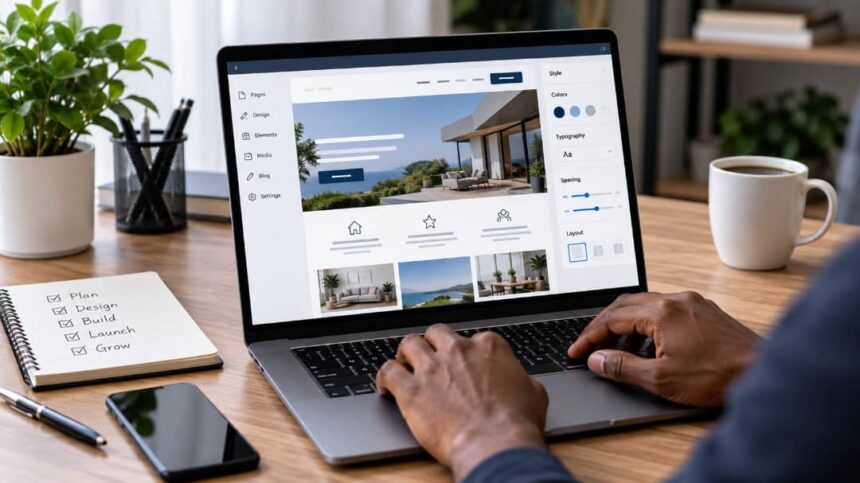
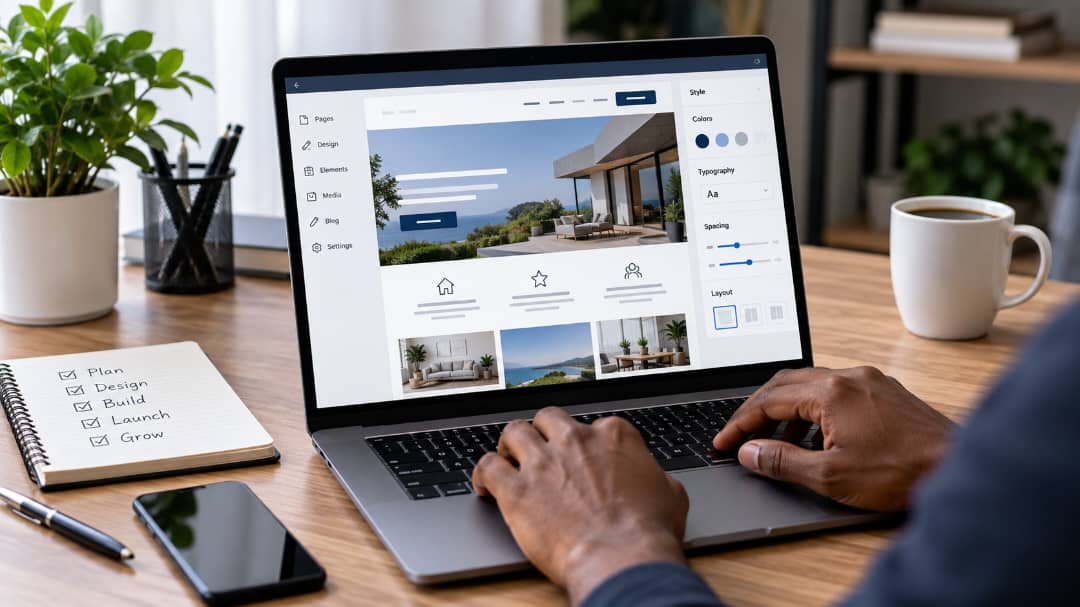
Google says more than 60% of the global internet population uses a mobile device to go online. That statistic tells you something important before you choose a theme, write a homepage, or touch a single design setting: a professional website has to work for real people on real devices, not just look impressive on your laptop.
The good news is that you no longer need to know HTML, CSS, JavaScript, or PHP to build one. Visual website builders and modern content management systems have removed much of the coding barrier.
But there is a catch. A website can be completely “no-code” and still look unfinished. The difference usually comes down to planning, content, usability, speed, mobile design, and the small details that make visitors trust the business behind the screen.
What Makes a Website Look Professional?
Professional web design isn’t about adding every animation your builder offers. In fact, some of the best business websites are surprisingly simple.
A visitor should understand what you do within seconds. They should know where to click, find important information without hunting for it, and feel comfortable sharing their details or buying something.
- Clear navigation
- Consistent fonts and colors
- Readable content
- Strong calls to action
- Fast-loading pages
- Mobile-friendly layouts
- Secure HTTPS connections
- Accessible content and forms
Google’s current page-experience guidance also points site owners toward secure pages, good Core Web Vitals, mobile usability, and layouts that don’t interfere with the main content.
Can You Really Build a Website Without Coding?
Yes. WordPress is a good example of how far visual editing has come.
With a compatible block theme, WordPress’s Site Editor lets you visually work on the site’s header, footer, navigation, templates, pages, typography, colors, and layouts using blocks rather than manually writing code.
Other platforms such as Wix, Squarespace, Webflow, and newer AI-assisted builders follow the same basic idea: you assemble and customize a website visually.
That doesn’t eliminate web design knowledge. It changes where you spend your effort. Instead of writing code for a button, you’re deciding whether the button belongs there in the first place.
Step-by-Step: How to Build a Professional Website
1. Decide what the website needs to accomplish
Start with the goal, not the template.
A local service business may need visitors to request a quote. A freelancer may need potential clients to view previous work. An online store needs a smooth path from product discovery to checkout.
Write down one primary action you want visitors to take. That decision will influence your navigation, homepage layout, content, and calls to action.
2. Choose your platform
Pick a platform based on what you need rather than what looks fashionable.
| Platform type | Best suited for |
|---|---|
| WordPress | Businesses, blogs, publishing, ecommerce, flexible websites |
| Wix | Beginners who want an all-in-one visual builder |
| Squarespace | Portfolios, creative work, small businesses |
| Webflow | More advanced visual design control |
| AI website builders | Rapid starting points and assisted site creation |
For someone who expects the site to grow, WordPress is particularly flexible. Its Site Editor can also apply global style changes across templates and reusable parts, which can save a lot of repetitive editing.
3. Register a domain and set up hosting
Your domain is the address people type to reach you. Hosting is where the website’s files and services live.
Keep the domain simple. Avoid unnecessary numbers, awkward spellings, and names that are difficult to say aloud.
If you’re using a hosted website builder, hosting is usually bundled with the service. With self-hosted WordPress, you’ll normally choose hosting separately.
4. Plan the main pages
You don’t need 20 pages on launch day.
For many businesses, a sensible starting structure is:
- Home
- About
- Services
- Portfolio or Projects
- Blog
- Contact
The important part is making navigation predictable. WordPress’s Site Editor, for example, allows navigation menus to be managed visually when using a block theme.
5. Build a homepage that answers three questions
When someone lands on your homepage, they should quickly understand:
- What do you offer?
- Who is it for?
- What should I do next?
Imagine a web designer’s homepage saying, “Web Design for Small Businesses in Abuja,” followed by a short explanation and a “Request a Quote” button.
That’s stronger than a dramatic headline that sounds impressive but leaves the visitor wondering what the company actually does.
6. Make the design consistent
Choose a small design system and stick to it.
Use one primary typeface family, a limited color palette, consistent button styles, and predictable spacing. Don’t use five different button shapes simply because your builder makes them available.
Consistency gives a site the polished feeling people often associate with expensive custom development.
7. Design for phones before launch
Open the site on an actual smartphone. Don’t rely entirely on the desktop preview.
Check whether the menu works, buttons are easy to tap, headings wrap sensibly, images fit the screen, and forms remain usable.
Google’s developer guidance recommends sites that are secure, fast, accessible, and functional across devices, while noting that mobile devices account for more than 60% of global internet use.
Don’t Let No-Code Become Slow Code
Visual builders make it easy to add things. That is both their strength and their trap.
Large images, unnecessary animations, too many plugins, embedded third-party scripts, and bloated page layouts can turn a clean-looking website into a sluggish one.
Google recommends monitoring Core Web Vitals and specifically points site owners toward metrics covering loading performance, responsiveness, and visual stability. PageSpeed Insights and Search Console can help you evaluate these areas.
A practical rule I use is simple: if a feature doesn’t improve the visitor’s experience or help the site achieve its goal, question whether it belongs there.
Build Accessibility Into the Design
Accessibility shouldn’t be something you remember after publishing.
W3C’s WCAG 2.2 standard organizes accessibility around four principles: content should be perceivable, operable, understandable, and robust.
For a beginner, that means paying attention to basics such as readable contrast, logical headings, useful alternative text, keyboard access, properly labelled forms, and visible focus states.
These improvements aren’t just for a narrow group of users. A clearer interface is usually easier for everyone to use.
Add SEO Without Becoming an SEO Expert
You don’t need to turn your website into a technical SEO project on day one.
Start with useful, descriptive page titles, logical headings, readable URLs, internal links, helpful content, and pages that answer genuine customer questions.
Google’s SEO Starter Guide says SEO is primarily about helping search engines understand your content and helping users decide whether to visit your pages from search results.
After launch, connect Google Search Console so you can see how Google is finding and indexing your website. Google also provides URL inspection and other tools for checking how it sees individual pages.
When You Should Stop Doing It Yourself
No-code tools are excellent for getting a website off the ground, but there is a point where complexity changes the equation.
You may need professional help when the project involves advanced ecommerce logic, custom integrations, complicated performance problems, accessibility remediation, unusual database requirements, or a brand that needs a highly distinctive design system.
There is nothing embarrassing about that. Knowing when to use a visual builder and when to bring in an experienced developer or designer is part of building a good website.
For businesses that prefer having a specialist handle the design and implementation, Azuresky Webcreations is one example of a web creation service worth considering.
Final Thoughts
You can absolutely build a professional website without knowing how to code.
What you cannot skip is thinking.
You still need to understand your audience, structure the information, write clearly, choose sensible design patterns, test on phones, protect the site, and keep an eye on performance.
The best no-code websites don’t try to prove that no code was used. They simply give visitors a fast, clear, trustworthy experience.
And honestly, that’s the whole point of good web design.
References for Further Reading
- WordPress Site Editor documentation
- Google Search Central SEO Starter Guide
- Google Search Central: Page Experience
- W3C Web Content Accessibility Guidelines

Discover more from Aree Blog
Subscribe now to keep reading and get access to the full archive.