My Home Wi-Fi Network security consisted of changing the Wi-Fi password from the sticker on the router to the favorite phrase I love to say. Never thought anyone would hack me. Turns out, lots of automated nasties scan for vulnerable networks 24/7. Default settings? Outdated firmware? It’s like leaving your car unlocked with the keys in the ignition in a busy parking lot. Not smart.
Securing your Home Wi-Fi Network is like flossing. Annoying? Sometimes. Essential for health? Absolutely.
Locking Down Your Wi-Fi
Change your default admin login. Your router came with “admin/admin” or something similar. These combinations are public knowledge, They’re all over the internet.
What I Do: I log into my router (usually by typing 192.168.1.1 or 192.168.0.1 into a browser – Google your router model if stuck). I look for “Administration” or “Management” settings. Then, I create a very unique username and password. Think PurpleFlyingMonkey$EatsPizza42!, NOT admin1. Guard it fiercely. Never reuse it.
Your Wi-Fi Password Needs Strength. “password123” or your street name is not good enough. That’s crackable in seconds. My Method: I make it long and weird. Minimum 15 characters. Mix upper/lower case, numbers, symbols. CorrectHorseBatteryStaple! (but longer and weirder) is better than P@ssw0rd. Zero personal info. This password locks the front door to your actual wi-fi network.
Scramble Your Signal (Encryption)
WPA3 or Bust. (Or WPA2 if You’re Stuck). Action Required: Go to your router’s wireless security settings. Find the encryption dropdown. If you see WPA3, select it. It’s the current gold standard. If your router is older (like mine was for ages) and only has WPA2, choose WPA2 (AES). Crucially: If you see WEP or WPA (TKIP)? Run away. Those are ancient, broken protocols. WPA3 or WPA2 (AES) are the only acceptable options for a secure Home Wi-Fi Network.
Kill WPS. Just Murder It. That little button you press to connect gadgets easily? Huge security hole. WPS is notoriously easy to brute-force hack. My Stance: I find the WPS setting (usually under wireless security) and disable it. Completely. Gone. Connecting new devices manually with my strong password takes 10 extra seconds. Worth it for the massive security boost.
Frequent Updates & Location Management
Your router isn’t a set-it-and-forget-it appliance. It needs care.
UPDATE. THE. FIRMWARE. Please! Manufacturers patch security holes all the time. Running old firmware is like ignoring a recall notice on your car brakes. My Habit: I check for updates in my router admin panel every few months. Seriously, set a calendar reminder. If there’s an “Auto-Update” option? Turn. It. On. This is one of the easiest and most critical steps for Home Wi-Fi Network security.
Disable “Remote Management.” (You Don’t Need It). Unless you’re a network admin managing your home router from Bali, this feature is a massive risk. It lets outsiders potentially access your router settings. My Rule: I find “Remote Management,” “Remote Access,” or “Cloud Access” and disable it. Hard stop. I manage my router from inside my house only.
Where’s Your Router Hiding? Think Physical: I keep mine centrally located (for good signal) but not right by a window where someone could easily mess with it or see the model number. Out of sight, out of mind (and out of reach).
Split Up the Party (Guest Networks & Access)
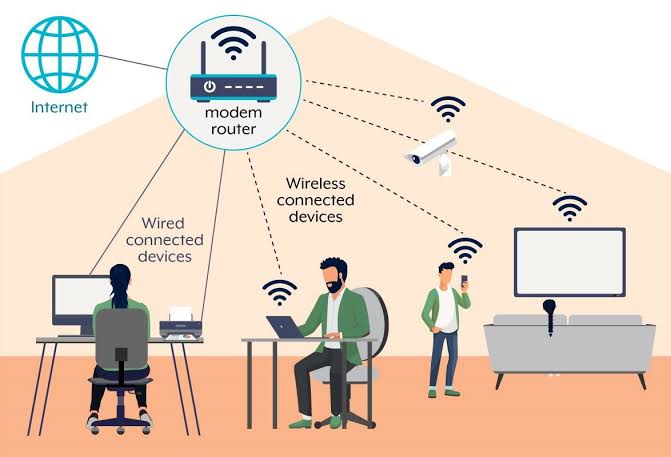
Guest Network = Lifesaver. Friends, babysitters, the plumber? They get the guest network. Why I Love It: It gives them internet access but walls them off completely from my main network where my computers, smart home stuff, and NAS live. My private data stays private. Setting it up is usually dead simple in the router settings – just give it a different name and password (still strong!).
MAC Filtering? Maybe… (But It’s Fussy). Every device has a unique MAC address. You find it under “MAC Filtering” or “Access Control,” add your device addresses. But be warned: It’s tedious (adding every new phone, tablet, smart bulb). And it’s not foolproof – MAC addresses can be faked. It’s an extra layer, but not my primary defense. Good for very static setups.
Hiding Your Network Name (SSID)? Meh. You can stop broadcasting your Wi-Fi name so it doesn’t show up in lists. I’ve Tried It: You uncheck “Enable SSID Broadcast.” Reality Check: It’s “security through obscurity.” Anyone mildly determined can still find it, and connecting new devices becomes a hassle (you gotta type the exact hidden name). Minor annoyance for you, minor speed bump for a hacker. Optional.
Extra Credit for the Protective Ones (Like Me)
Get a VPN. A VPN encrypts everything leaving your device, not just the trip to your router. Why I Use One: I subscribe to a reputable VPN provider (do your research!). I run their app on my laptop and phone, especially when on public Wi-Fi, but often on my home wi-fi too. It hides my traffic from my ISP and adds a layer inside my own network. Essential for peace of mind.
Your router has a built-in firewall blocking unwanted incoming junk. My Check: I verify it’s enabled (usually under “Security” or “Firewall”). It’s your basic digital moat. Don’t drain it!
Who’s On My Wi-Fi?! Check Regularly: I poke around my router admin panel every so often and look at the list of connected devices. I recognize my phone, laptop, TV… if I see “Unknown-Device-7z83hd” at 3 AM? That device gets the boot immediately. Many router apps make this super easy now.
Just do it
Look, most of this takes 30-60 minutes tops. Prioritize:
- Changing default logins & Wi-Fi password (STRONG ones!).
- Enabling WPA3/WPA2(AES) encryption.
- Updating your router’s firmware (and turning on auto-updates!).
- Setting up a Guest Network.
These are the foundation. The rest? Gravy for extra security.
Taking these steps transforms your Home Wi-Fi Network from an easy target into a much tougher nut to crack. It protects your privacy, your data, your smart gadgets, and your bandwidth from freeloaders. It’s not about being unhackable (nothing is), but about not being the easiest target on the block.
Go log into that router. Future-you, relaxing without worrying about digital intruders, will thank you.
P.S. Yes, strong passwords are a pain to type on the smart TV. I hate it too. Use a password manager. It’s worth it. And if your router is old, consider an upgrade – newer ones often have better security baked in.

Discover more from Aree Blog
Subscribe now to keep reading and get access to the full archive.