
Every minute, thousands of people use a terminal to run commands and many organizations rely on SSH to connect computers securely. If you’ve ever wondered which tool does what, this guide will make the difference clear.
Computers have lots of layers. Some let you point and click. Others ask you to type. Two names you’ll often see together are SSH and terminal. They work together, but they are not the same thing. One is a way to talk to another computer safely. The other is the box where you type instructions.
This post explains both, compares them step by step, and gives simple examples you can try without feeling lost.
Key takeaways
- Terminal is the place where you type commands.
- SSH (Secure Shell) is the tool that makes a remote connection secure.
- You use a terminal to run SSH, but you can also use a terminal for many other tasks that don’t involve remote access.
- Simple security steps: use key-based SSH login, disable password login, and monitor login attempts, make remote work safer.
- Knowing the difference helps you learn faster and prevents common setup errors.
What is the Terminal?
A terminal is a text-based interface. Think of it as a chat window for your computer: you type a command, the computer answers. It existed long before modern graphical interfaces. For many tasks, typing is faster and clearer than clicking.

People use a terminal to run programs, move files, check system health, and automate repetitive work. Examples include copying files, editing text files, installing software, and listing folders. The terminal accepts typed commands and shows the results right away.
There are different terminal programs. On a Windows machine you might use Command Prompt or PowerShell. On a Mac or Linux system the common terminal is called Terminal.app or a shell like bash or zsh. Those shells are programs that read what you type and act on it. They also let you chain commands together and write small scripts, which saves time compared with clicking through menus.
What is SSH?
SSH stands for Secure Shell. It is a communication method that lets one computer connect to another over a network and run commands as if you were sitting at the remote machine. The key word is secure: SSH encrypts the traffic so that people listening on the network can’t read passwords or command output.

You usually use SSH from a terminal. In the terminal you type a short command like ssh daniel@server.areeblog.com. That command opens an encrypted connection to the remote server and gives you a prompt on that server. From there you can run commands as if you were using its terminal directly.
SSH does more than remote login. It can copy files (SCP, SFTP), forward ports to create secure tunnels, and run single commands remotely without opening an interactive session. SSH uses keys (a pair of linked files) as a safer alternative to typed passwords. When set up properly, key-based login is more reliable and much harder to misuse.
SSH vs Terminal: A Clear Comparison
Purpose
- Terminal: A place to type commands and see results. It can run programs on the machine you’re using.
- SSH: A secure channel that sends commands and output between two machines across a network.
How They Connect
- You open a terminal on your laptop.
- From that terminal you run an SSH command to reach a server.
- Once connected, your terminal shows the remote machine’s prompt and you work there.
Typical Commands
- Terminal-only tasks:
ls,cd,cat file.txt,top(monitor local processes). - SSH tasks started in a terminal:
ssh user@areeblog.com,scp file user@host:/path,ssh -L 8080:internal:80 user@jumpbox.

Security
- The terminal does not add encryption by itself; it is just an interface.
- SSH provides encryption, authentication, and integrity checks while data travels across the network.
When You Don’t Need SSH
- If you are sitting at the computer you want to control, use the terminal directly — no SSH required.
- If you work with files locally or run programs on your device, the terminal alone is enough.
Everyday Examples to Make it Practical
Example 1: local task in terminal
You want to see a folder’s content. Open a terminal and run:
ls -la
That lists files on your machine. SSH is not involved.
Example 2: remote task with SSH
You need to restart a service on a remote server. Open a terminal and run:
ssh admin@server.example.com
sudo systemctl restart webserver
Here the terminal is the place you type. SSH is the channel that gets your command to the other computer.
Example 3: file transfer
To move a backup to a remote machine:
scp backup.tar.gz admin@backup-host:/backups/
SCP uses SSH under the hood. You run it in your terminal; the data travels securely to the remote host.
Why People Confuse Them, and How to Stop Mixing Them Up
The two terms are mentioned together because they are often used in the same workflow. But mixing them up causes small mistakes.
A simple rule helps: terminal = input place; SSH = secure pathway. When you remember that, you can more easily learn commands and follow security best practice.
Basic Security Steps for SSH
You don’t need deep technical skill to make SSH safer. Here are straightforward steps:
- Use keys instead of passwords. Create a key pair on your device and put the public key on the server. The private key stays on your device and should be protected by a passphrase.
- Disable password login on servers. Once keys are working, turn off password-based login so attackers can’t try weak passwords.
- Disable direct root login. Create an admin user and use
sudofor tasks that need higher access. - Monitor login attempts. Keep an eye on logs for repeated failed attempts or new key additions.
- Keep software updated. Install security updates for the SSH server and operating system.
These steps are practical and reduce risk significantly without adding friction to daily work.
How Beginners Can Practice Safely
If you want to try SSH and terminal commands, do it in a lab, a spare computer or a virtual machine is perfect. Try these exercises:
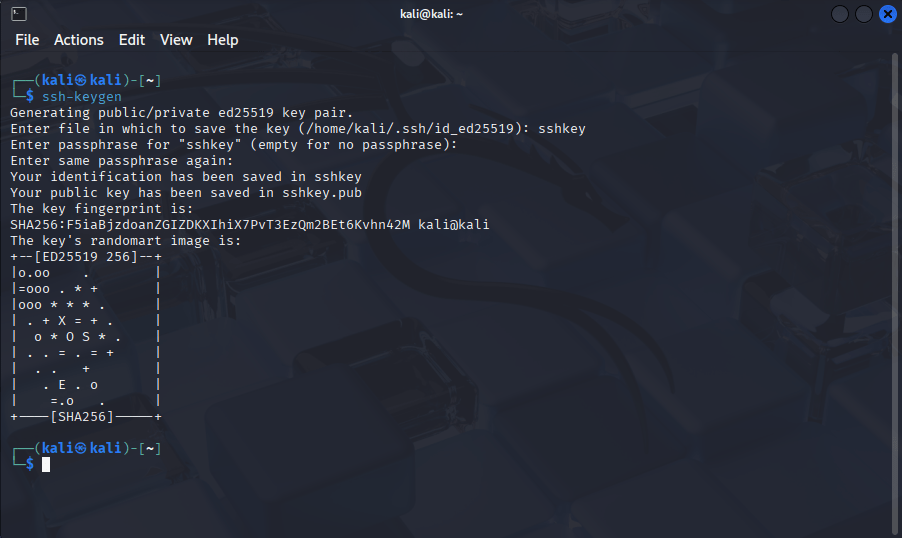
- Create a key pair (
ssh-keygen) and copy the public key to a test server (ssh-copy-idor manual edit of~/.ssh/authorized_keys). - Start an SSH session and run basic shell commands on the remote machine.
- Use
scpto copy a file between machines. - Use
ssh -Dto create a temporary SOCKS proxy and browse through it for learning only.
Practicing in a controlled environment helps you learn without risking real systems.
Common Error and How to Fix it (short troubleshooting guide)
- Problem:
Permission denied (publickey)
Fix: Ensure your private key is loaded, permissions are correct (chmod 600 ~/.ssh/id_rsa), and the server has the matching public key in~/.ssh/authorized_keys. - Problem: Long wait and then no connection
Fix: Check network, firewall, or port blocking. Confirm the correct hostname and port. - Problem: Password login still allowed after setting keys
Fix: Edit the server’s SSH config (/etc/ssh/sshd_config) toPasswordAuthentication noand restart SSH service.
These are frequent and usually quick to resolve.
Where SSH and terminal Meet in Daily Work
Many roles use both tools together. For example:
- System administrator: Uses a terminal daily and relies on SSH to manage remote servers.
- Developer: Runs local builds in a terminal and pushes code to remote repositories, sometimes via SSH.
- Penetration tester or security analyst: Uses the tools for scanning and SSH to reach lab machines. (Only in authorized environments.)
Knowing which tool helps which job improves efficiency and reduces mistakes.
Avoiding Common Security Traps
A few quick habits keep you safe:
- Don’t share private keys. If someone else needs access, use a separate key for them.
- Don’t make private keys world-readable. File permission errors are a top cause of failed connections.
- Rotate keys when staff change roles to avoid forgotten access.
- Use a central key manager for many servers to avoid lost inventory.
These steps keep access tidy and make audits simpler.
Final Comparison Between SSH and Terminal
- Terminal: A typing window on your device for running command.
- SSH: A secure path that lets you use a terminal on another device.
If you remember just these two lines, you’ll avoid the most common confusion.
Short Checklist You Can Use Now
- Can you open a terminal on your device? Try
lsorecho hello. - Have you generated a key pair?
ssh-keygen -t ed25519. - Have you copied the public key to a test server?
ssh-copy-id user@host. - Is password login disabled on the server? Check
/etc/ssh/sshd_config. - Are login attempts logged centrally? Send logs to a monitoring tool if possible.
References for further reading
- OpenSSH security and hardening
- SSH key management guides — for discovery, rotation, and governance.
- Shell introductions — for learning common commands and shell basics.

Discover more from Aree Blog
Subscribe now to keep reading and get access to the full archive.